
- If you haven’t done so already, connect your smart lights to your local networK 2.4GHz Wi-Fi network using the Monster Smart Mobile App on your mobile device. (Follow the pairing instructions in the QSG for your device.)
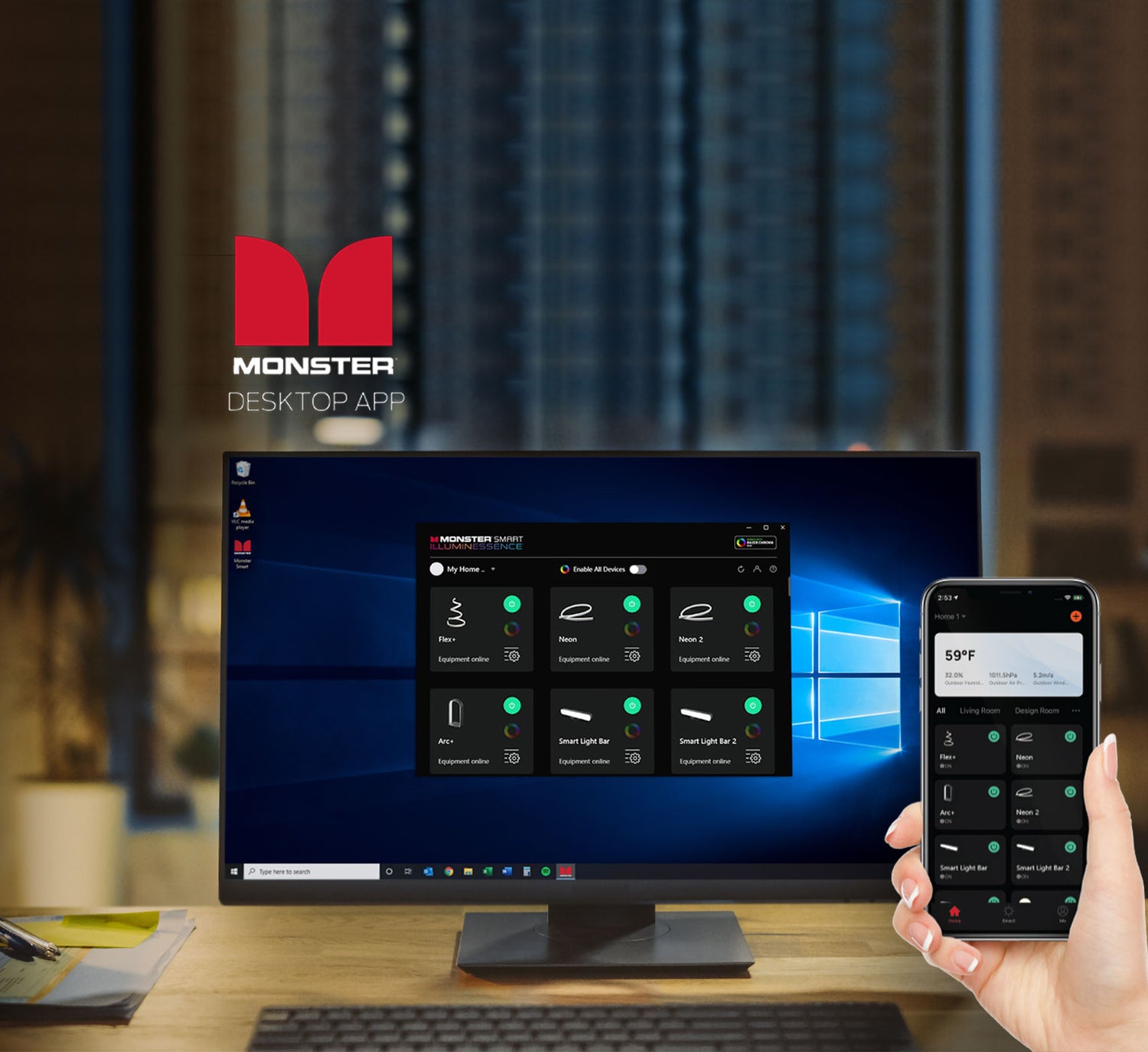
PC DESKTOP APP
Introducing the new desktop companion to the Monster Smart mobile app, providing quick and easy local network control of all your Monster Smart Lighting devices, right from your PC.
- Quick and easy local network control of all of your connected Monster Smart Lighting devices right from your Windows PC or Laptop
- Works with Razer Chroma RGB -Sync colors and lighting effects with compatible PC accessories, games, and music!
- Click Below to download the FREE Monster Smart Lighting Desktop App from the Microsoft Store
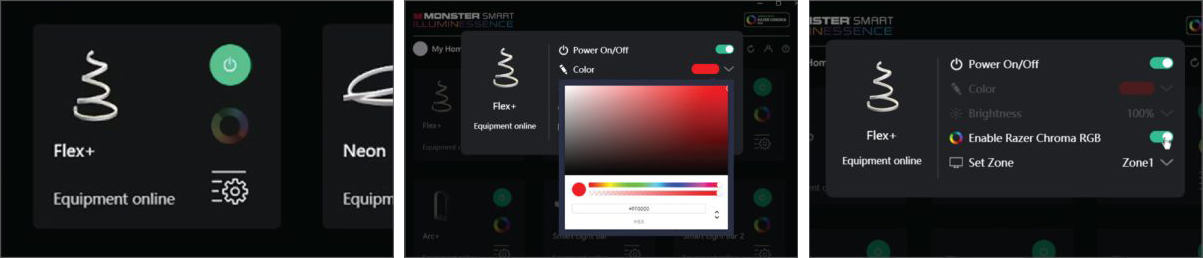
Using the Monster Smart Lighting Desktop App you can easily turn on and off your Monster Smart devices, adjust color and brightness, and enable optional Razer Chroma RGB™ integration with Razer Synapse.
GET STARTED
- Click on the DOWNLOAD button to download and install the Monster Smart Lighting Desktop App. Once installed, login to the desktop app using the same login user name and password as your Monster Smart Lighting mobile app.
ENJOY
- You can now control your Monster Smart Lighting devices right from your Windows desktop or laptop!
- In order for the Monster Smart Lighting Desktop App to find your local smart devices, it needs to access your local network (LAN communication). Please allow access to Private Networks in your computer’s firewall settings. For more info, go to https://monsterilluminessence.com/desktop-support/
Note: Some legacy Monster Smart Lighting devices may not fully integrate with the Desktop App or with Razer Synapse. If you experience difficulty, please contact customer service at customerservice@monsterilluminessence.com